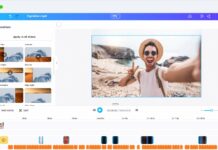
Working with video does not always require a dedicated program installed on a computer. Many common video tasks can now be completed through web-based tools that operate directly inside a browser. This approach can be useful when you need to perform a quick edit, convert a file, reduce its size, or prepare footage for sharing without committing to a large desktop application.

Browser-based video tools are particularly convenient for occasional users. Instead of downloading software, searching for compatible versions, managing updates, and learning a complicated interface, you can often open a website and start with the task you need. This can save time and reduce the amount of software stored on your device.
However, using online tools effectively requires some planning. File size, internet speed, privacy, output quality, and supported formats can all affect the experience. Knowing which tasks work well in a browser and how to handle your files safely can make this approach much more practical.
Trim a Video Directly in Your Browser
One of the simplest tasks is trimming unwanted sections from a video.
A browser-based trimmer can allow you to select where the recording should begin and end. This is useful when a video contains unnecessary footage at the beginning or end.
For example, a phone recording might include several seconds before the actual event starts. Instead of installing an editing program, you can upload the file to a suitable online tool, select the required portion, and export a shorter version.
Keep the original file until you have checked the final result.
Cut a Longer Recording Into Smaller Clips
Sometimes you need several short clips from one long recording.
An online video cutter can help create individual sections without requiring a full editing application.
This can be useful for interviews, presentations, lectures, demonstrations, or personal recordings.
Create separate copies of the sections you need rather than permanently modifying the original footage. This gives you the flexibility to return to the complete recording later.
Convert Video Formats Online
Different devices and applications can prefer different video formats.
An online converter can help create a compatible copy when the original format does not work properly with your intended application.
For example, you may have a video in a format that your preferred editor does not recognize.
Instead of installing conversion software, you can use a browser-based service to produce a supported version.
Always check the output settings before converting because unnecessary re-encoding can reduce quality.
Reduce the Size of Large Video Files
High-resolution videos can occupy a surprising amount of storage.
If you need to send a large file through email, upload it to a website, or save it on a device with limited space, compression may help.
Online compression tools can reduce the amount of data required by a video.
The trade-off is that stronger compression can affect visual quality.
For important footage, keep the original file and use the compressed version only when a smaller size is more useful.
Resize Videos for Different Uses
A video may be too large in dimensions for a particular destination.
For example, a high-resolution recording may be unnecessary for a small mobile display.
Online resizing tools can create a smaller version while maintaining the original separately.
When changing dimensions, preserve the aspect ratio unless you intentionally want to crop the video.
This helps prevent people and objects from appearing stretched.
Change a Video’s Aspect Ratio
Different viewing environments can use different frame shapes.
A horizontal recording may need to be adapted for a vertical presentation, while a square format may be useful in another situation.
Browser-based aspect-ratio tools can crop, resize, or add space around footage to create the desired shape.
Before exporting, preview the result to make sure important subjects have not been cut out of the frame.
Rotate a Video
A video can occasionally appear sideways after being transferred from a phone or camera.
Online rotation tools can correct the orientation quickly.
This is a straightforward task that rarely requires advanced editing software.
After rotating the video, check the final file on the device where you plan to watch it.
Crop Unwanted Areas
Cropping can remove unnecessary parts of a frame.
This is useful when the main subject occupies only part of the original image or when you need to adapt the footage to a different layout.
Online cropping tools usually provide a visual frame that can be adjusted with the mouse or touch controls.
Be careful when cropping high-resolution video because removing too much of the frame can reduce useful detail.
Extract Audio From a Video
Sometimes the visual component of a recording is unnecessary.
If you own the video or have permission to process it, an online audio extraction tool can create a separate audio file.
This can be useful for personal recordings, lectures, interviews, or other content where listening is more convenient than watching.
Choose an appropriate audio format and quality setting for the intended use.
Create a Short Animated GIF
A short video segment can be turned into an animated GIF using an online tool.
This can be useful for simple demonstrations, reactions, short visual examples, or website content.
Because GIF files can become large, keep the duration and dimensions reasonable.
For longer or higher-quality animations, a standard video format may be more efficient.
Add Text to a Video
Browser-based editors can place text over video footage.
This can be useful for titles, explanations, labels, announcements, or simple branding.
Choose a font size that remains readable and position the text where it does not hide important visual information.
Some tools allow text to appear only during selected portions of the video.
Add Captions and Subtitles
Online captioning tools can make videos easier to follow, particularly when viewers watch without sound.
Some services allow manual caption entry, while others offer automatic transcription.
Automatic captions can save considerable time, but they should be reviewed carefully.
Names, technical terms, accents, background noise, and fast speech can cause transcription errors.
Create a Simple Video From Images
Some browser-based tools can combine photographs into a video.
This can be useful for presentations, simple slideshows, personal memories, product showcases, or visual announcements.
You can often arrange images, set their duration, and add background audio.
For a straightforward slideshow, this may be much faster than installing a full editing application.
Merge Several Video Clips
When several clips need to be combined into one sequence, an online merger can perform the task.
Upload the clips, arrange them in the required order, and export the combined file.
Before doing this, check whether the clips have significantly different resolutions or frame rates.
Large differences between source files can sometimes affect the final result.
Add Background Audio
Some online video editors allow users to add music or other audio tracks.
This can be useful for simple presentations and personal projects.
Make sure you have the appropriate rights to use any music or audio you add.
If the original video contains important speech, adjust the background volume so that the main voice remains clear.
Remove or Replace Simple Audio
Some browser-based editors allow users to mute an original soundtrack or replace it with another audio track.
This can be helpful when a recording contains unwanted background noise or when you need to create a version with different audio.
However, basic online tools may not provide the advanced noise reduction or audio restoration available in professional software.
For serious audio problems, a dedicated editor may be more suitable.
Create Video Thumbnails
A thumbnail can be created without installing design software.
Online image and video tools can capture a frame from the footage or allow you to create a custom graphic.
A useful thumbnail should clearly represent the video’s subject.
Avoid placing excessive text or misleading imagery on the image because viewers should have a realistic idea of what the video contains.
Record Your Screen in a Browser
Some online tools provide browser-based screen recording.
This can be useful for creating software tutorials, demonstrating a website, recording a presentation, or explaining a technical process.
Before recording, check which screen, window, microphone, and camera are selected.
Be careful not to display passwords, private messages, financial information, or other confidential material during the recording.
Record Camera Video Online
Web-based recording services can also use a device’s camera and microphone.
This can be convenient for short introductions, presentations, personal messages, and educational recordings.
The browser may request permission to access the camera and microphone.
Only grant these permissions to services you trust, and review the browser’s permission settings when you are finished.
Add a Watermark
A watermark can help identify the owner or source of a video.
Online tools can place text or an image over the footage.
This may be useful for business content, demonstrations, or personal projects.
Place the watermark where it remains visible without covering important information.
Remove Unwanted Beginning and Ending Sections
Many recordings contain unnecessary moments before and after the useful content.
An online trimming tool can quickly remove these sections.
This is especially helpful when a video was recorded casually and the camera continued running after the main event ended.
A few minutes of simple trimming can make a recording significantly easier to watch.
Prepare Videos for Sharing
Large files can be inconvenient to send through messaging services or upload to websites.
Online tools can help prepare a copy with appropriate dimensions, compression, and format.
Before processing, check the requirements of the destination.
A smaller file may upload faster, but excessive compression can reduce readability and image quality.
Make a Smaller Copy for Mobile Devices
You may want to keep the original high-resolution video on a computer or external drive while storing a smaller version on a phone.
An online converter or compressor can create a more manageable copy.
This can save mobile storage while preserving the original for future use.
Convert Older Videos Into Modern Formats
Older video files may not work conveniently with newer applications.
A browser-based converter can sometimes create a more compatible copy.
Before converting important archival footage, test the service with a small sample.
Some older formats can contain unusual codecs or technical characteristics that online converters may not handle correctly.
Check Video Properties Before Editing
Some online tools provide technical information about uploaded files.
This may include resolution, frame rate, bitrate, duration, codec, and file size.
Knowing these details can help you select appropriate output settings.
For example, converting a low-resolution source into an extremely high-resolution file will not create genuine additional detail.
Understanding the source makes it easier to choose realistic settings.
Use Online Tools Without Losing the Original
One of the safest habits is to treat online processing as creating a new copy.
Do not immediately overwrite your only original recording.
Keep the source file in a secure location and upload a copy when possible.
After downloading the processed result, inspect it before deciding whether the original can be removed.
This approach protects against unexpected quality loss or processing errors.
Consider Your Internet Connection
Online video tools depend heavily on internet access.
A large file must first be uploaded and then downloaded after processing.
With a slow connection, this can take considerably longer than local editing.
For short clips, the difference may be insignificant. For very large recordings, local software may be more practical.
Protect Private Footage
Online processing means your video is transferred to a third-party service.
Before uploading personal or confidential footage, consider whether the service’s privacy practices are appropriate.
Avoid uploading sensitive videos simply because an online tool is convenient.
For highly private material, processing locally can provide greater control.
Check Free Service Restrictions
Free browser-based tools may impose limits.
These can include maximum file sizes, daily usage restrictions, watermarks, reduced quality, slower processing, or fewer export options.
Read the service information before starting a project.
A tool that works well for a small clip may not be suitable for a large video library.
When Browser Tools Are Most Useful
Online tools are especially convenient for quick and occasional tasks.
They work well when you need to perform one specific operation without learning complicated software.
Simple trimming, format conversion, compression, resizing, cropping, and basic editing are common examples.
For larger professional projects, however, dedicated desktop applications may offer better control and performance.
Keep Your Workflow Simple
The biggest advantage of browser-based video tools is convenience.
You can often complete a task by opening a website, uploading a file, selecting the required settings, and downloading the result.
There is no need to install a large application or maintain another program on your computer.
Choosing the simplest tool that meets your needs can make video work faster and easier.
Conclusion
Video editing and file preparation do not always require installed software. Browser-based tools can handle many everyday tasks, including trimming, cutting, conversion, compression, resizing, cropping, audio extraction, captioning, screen recording, and basic editing.
The most effective approach is to match the tool to the job and keep your expectations realistic. Online processing is convenient for quick tasks, but large files, sensitive footage, and complex projects may be better handled locally.
Keep original videos backed up, check the quality of processed files, understand the privacy practices of the service you use, and pay attention to file-size restrictions. With those simple precautions, web-based video tools can provide a practical way to manage and edit video without installing additional software.